
タイマーをつくる
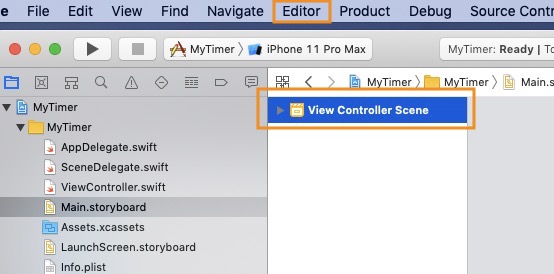
View Controller Sceneを選択して、Editorを選択します。
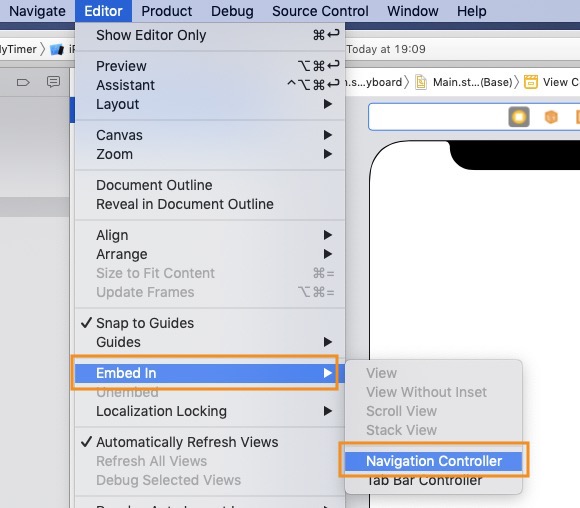
Navigation Controllerを選択します。
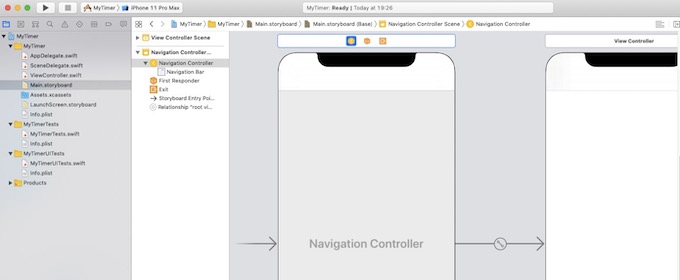
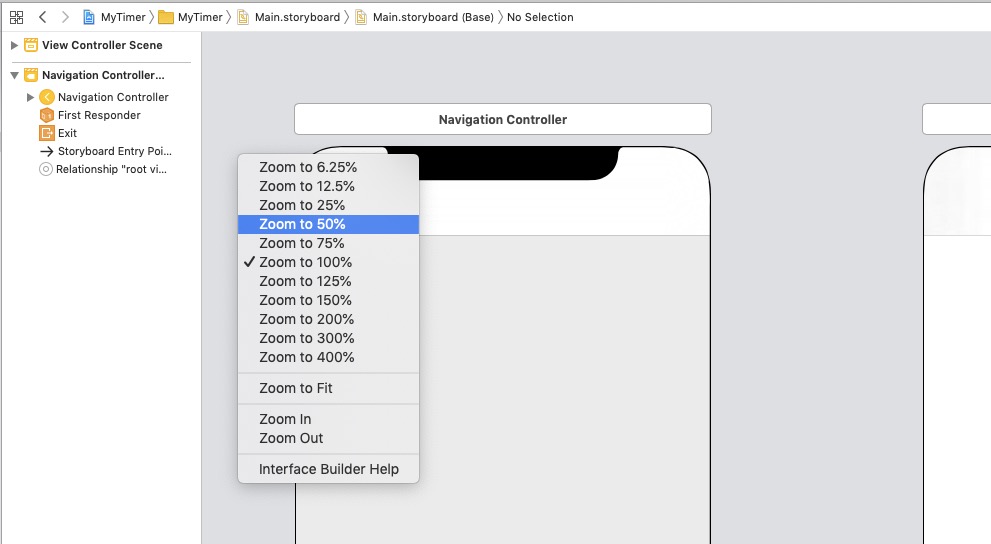
グレーの部分でControl + クリック
表示変更で50%に縮小して作業しやすくする。
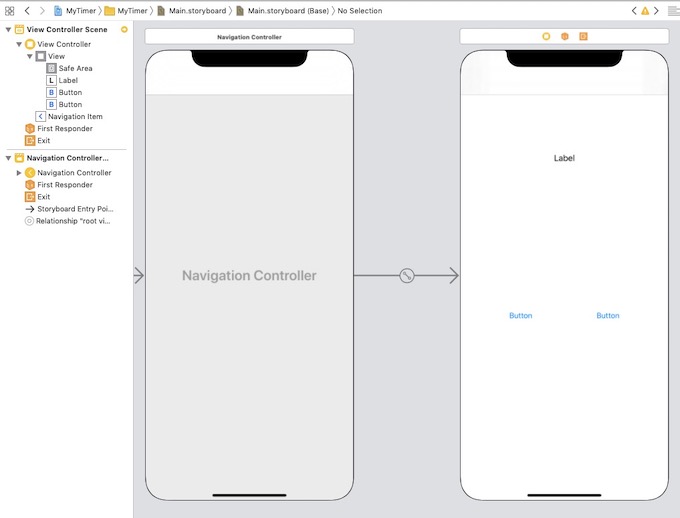
View ControllerにLabelとButton2つを配置します。
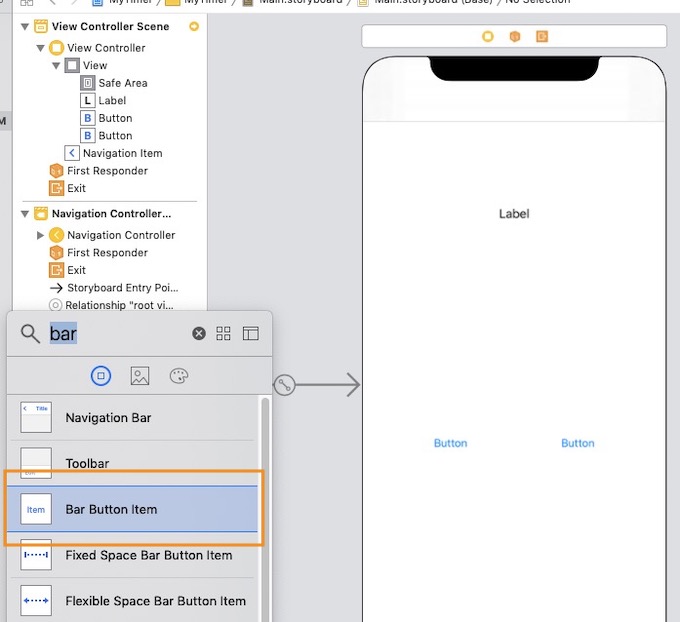
Bar Button Itemを配置します。
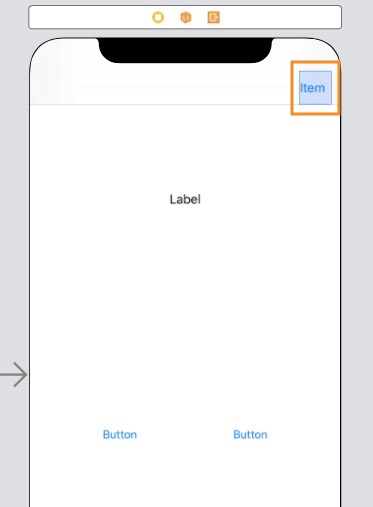
配置した。
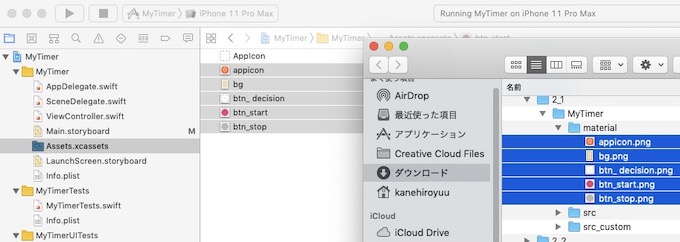
素材を配置
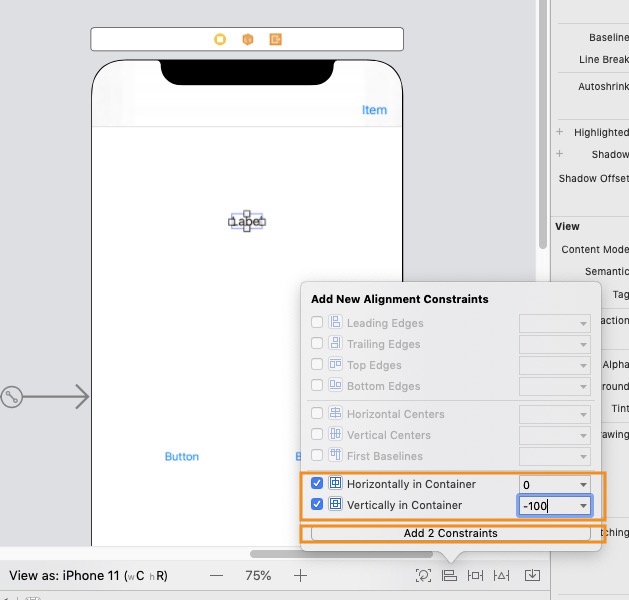
Label設定
- Horizontallyを0
- Verticallyを100ポイント上に
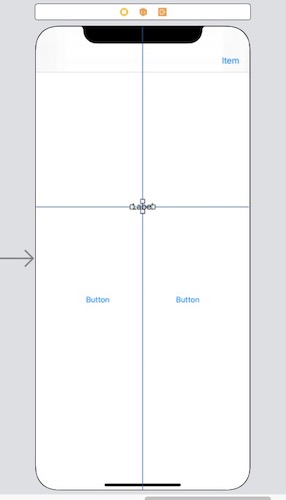

Labelの文字を大きく設定
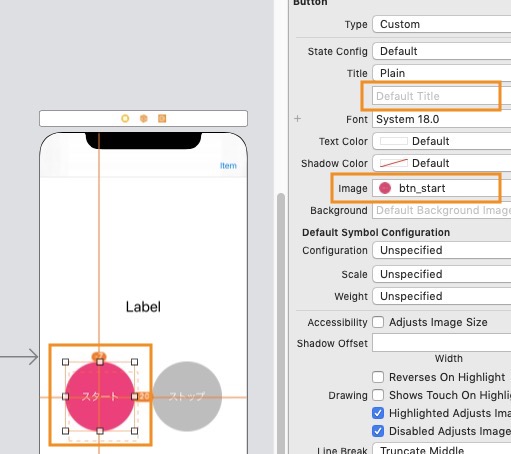
ボタンに背景画像を設定
レイアウトがずれるのでタイトルは空にする。
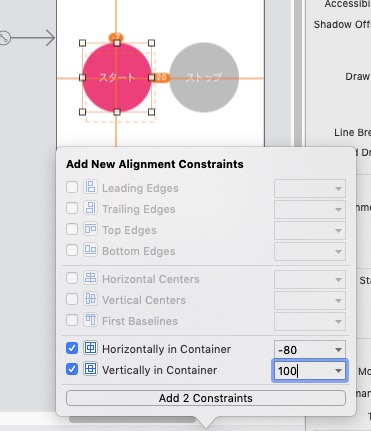
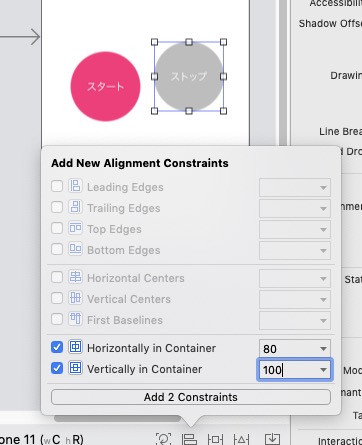
Costraintを設定
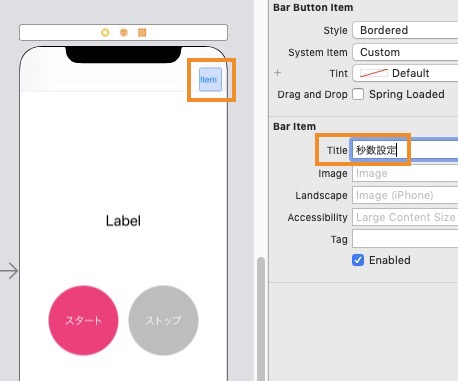
Bar button Iteのタイトル設定。
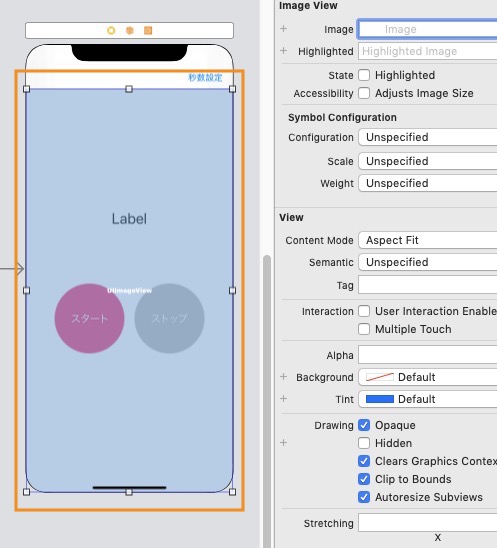
image viewを幅いっぱいにする
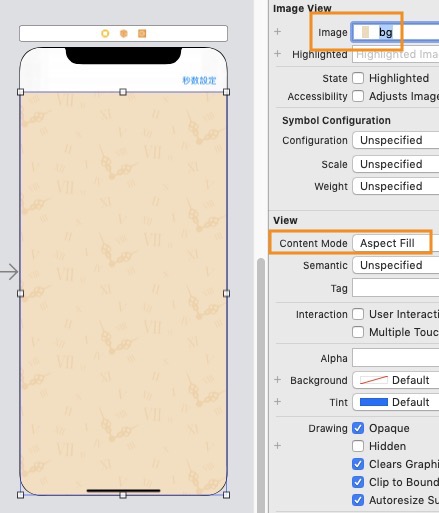
- imageに背景画像を設定
- Content ModeをAspect Fillに設定
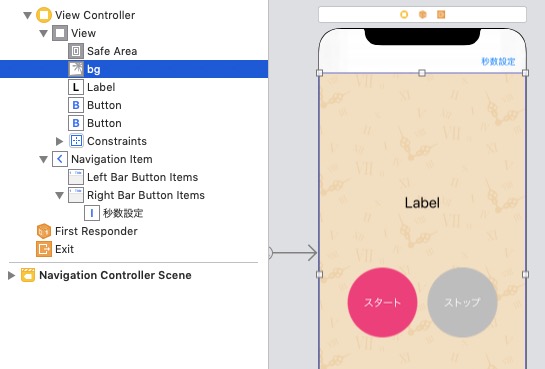
bgをDocument Onlineで移動させて背面にする。
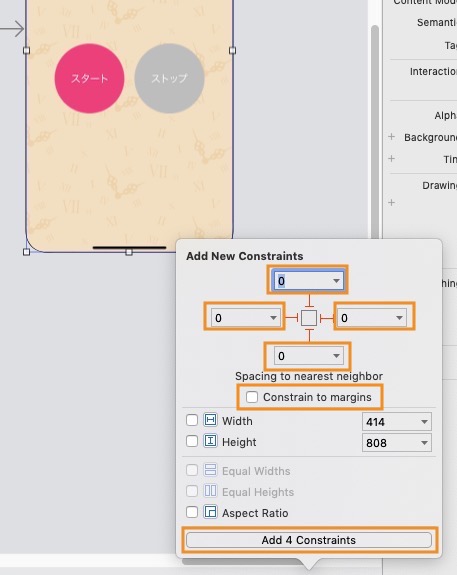
image viewのConstraintを設定
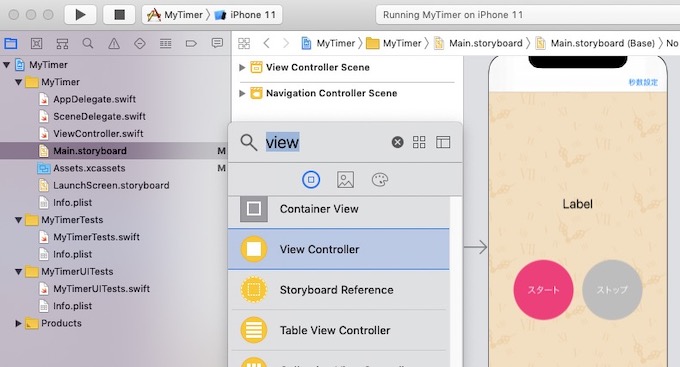
View controllerを追加して秒数設定の画面をつくる。
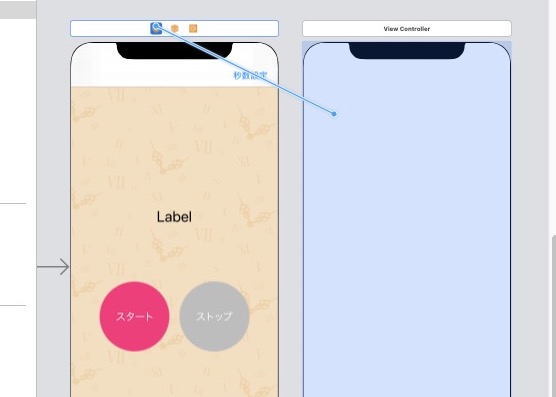
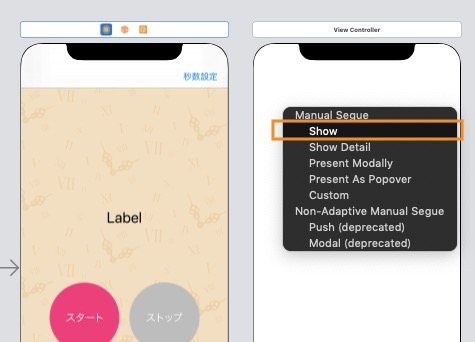
View Controllerを設置したら、画面遷移の設定。
Controlボタンをドラッグしながらドロップして遷移設定を行います。
Showを選択します。
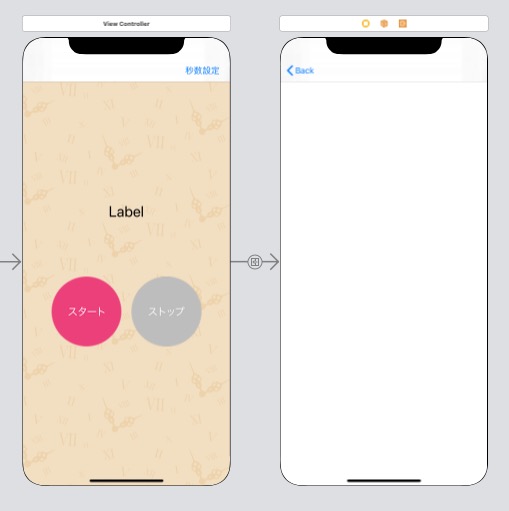
できた!
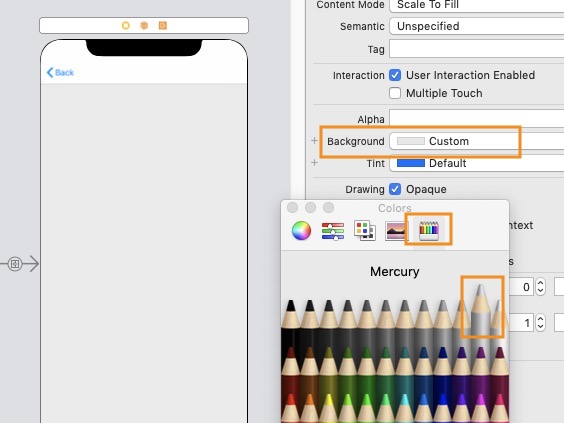
色鉛筆から選べるとかかわいい。
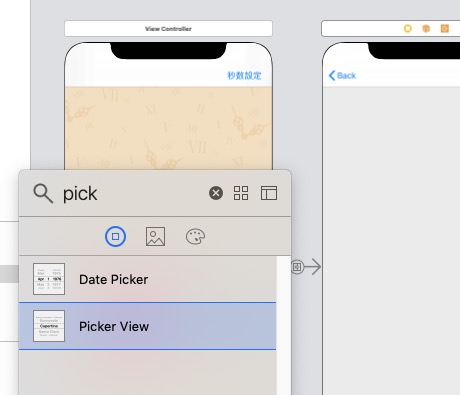
Picker Viewを配置する。
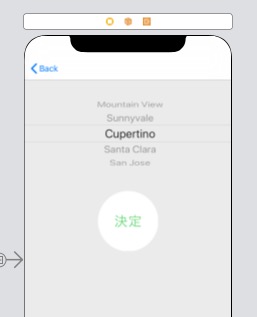
ボタンも配置した。
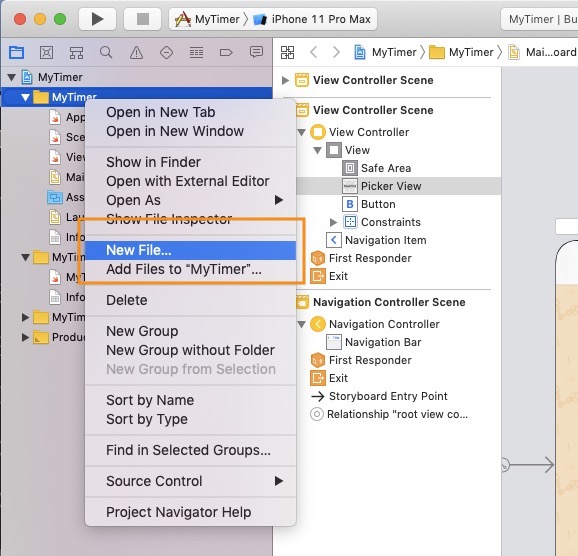
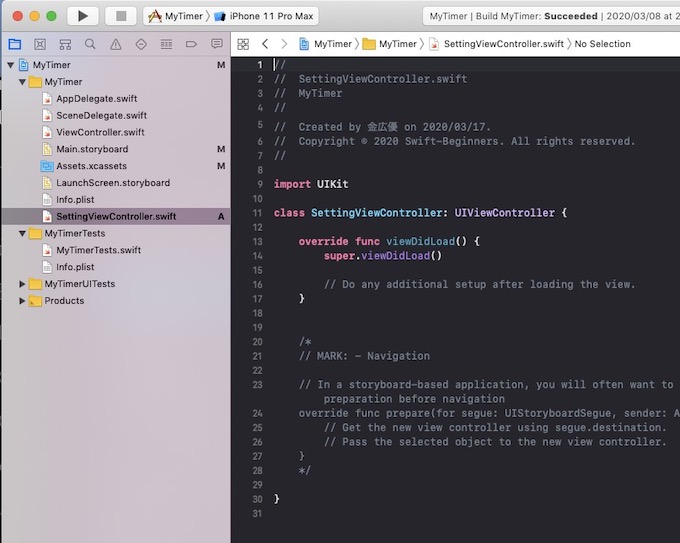
プロジェクトフォルダで右クリックで【New File】をクリックします。
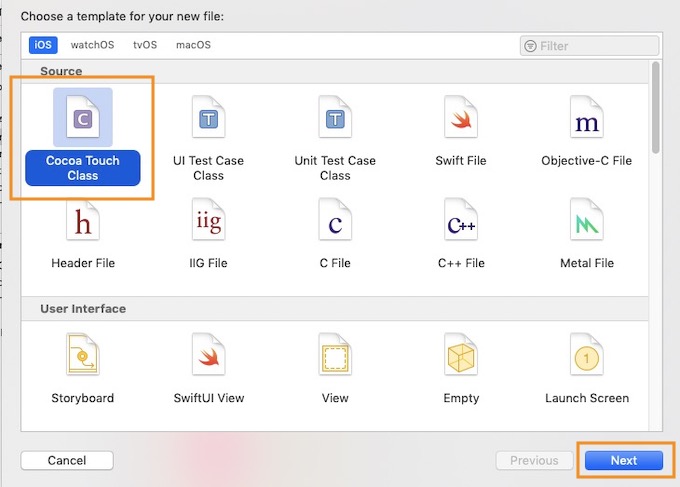
Cocoa Touch Classを選択してNextをクリックします。
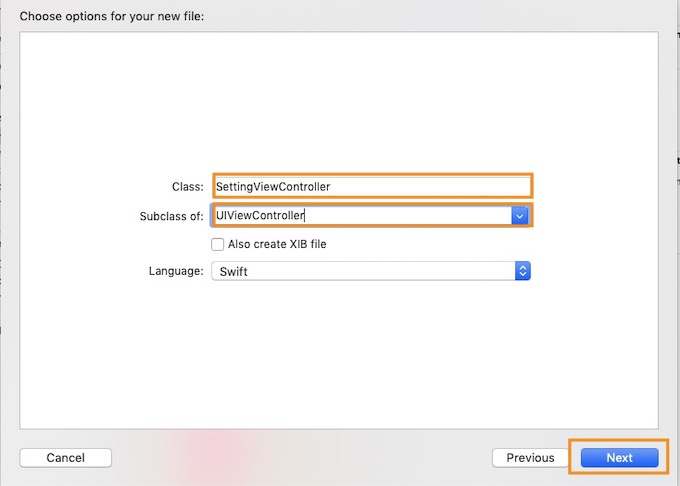
Classの名前は任意に、Subcalss ofをUIViewControllerを選択して、【Next】をクリックします。
関連記事 - More from my site -
 Xcode シミュレータ・アプリの日本語化対応
 ELB(ALB)1つで複数のバーチャルホストに対応する Host-based routing
 XenAPP同時接続ライセンス、Windows SRV2012R2 RDS CAL認証の整理
 EC2とElasticacheのセッション連携
 Cisco トラブルシューティング
 S様専用2
S様専用2 Raspberry Pi 3 + USB温度計でグラフ化 AWS IoT Core その①
 ベイズの定理
 RTX1210 DHCPIPリリース, NATセッション数 残高確認
 SQLインジェクション
 Postfix DKIM, SPF, 送信暗号化, 逆引き
 胡蝶蘭の天麩羅
![[Solved] Supervisor FATAL Exited too quickly (process log may have details)](https://www.yuulinux.tokyo/contents/wp-content/uploads/2019/01/laravel_20190131_1-150x150.jpg) [Solved] Supervisor FATAL Exited too quickly (process log may have details)
[Solved] Supervisor FATAL Exited too quickly (process log may have details) RTX1200 外出先からVPN経由で社内のファイルサーバにアクセスする